

Every time a new Marketo program gets created, there's a task waiting for you on the other side of it.
You need a briefing document. Not a rough outline: a real, formatted, stakeholder-ready doc that maps every program token to a fill-in field, broken out by asset, labeled in plain English, and styled to your brand standards. The kind of document your copywriters and campaign managers can actually use without pinging you with three follow-up questions.
So you open the program. You catalog the tokens. You rebuild the table structure you've built a hundred times before. You rename {{my.Hero-CTA-Copy}} to something a human can read. You match the fonts, check the colors, and double-check that you didn't miss anything.
An hour later, maybe two, you have a briefing doc. And somewhere in the background, another program just got created.
This is what marketing operations looks like before automation. It's not hard. It's just constant.
We built something to change that.
Introducing the Campaign Briefing Document Builder: A Free Claude Skill for Marketo
The Campaign Briefing Document Builder is a free Claude skill built by allGood, a Claude Marketo integration that turns program tokens into stakeholder-ready campaign briefs. You give it a campaign name. It talks directly to your Marketo instance, pulls every token from the program, figures out your campaign structure, and outputs a fully formatted, brand-compliant Marketo briefing document: ready for handoff.
What used to take an hour or two now takes minutes. It lets you automate Marketo campaign briefs end to end: no manual token cataloging, no reformatting tables, no translating Marketo-speak into something your copywriter understands.
It runs inside Claude, it's free, and it was built specifically for marketing operations teams running Marketo programs.
New to Claude skills? Check out our quick setup guide to get installed and ready in under two minutes.
How to Use It
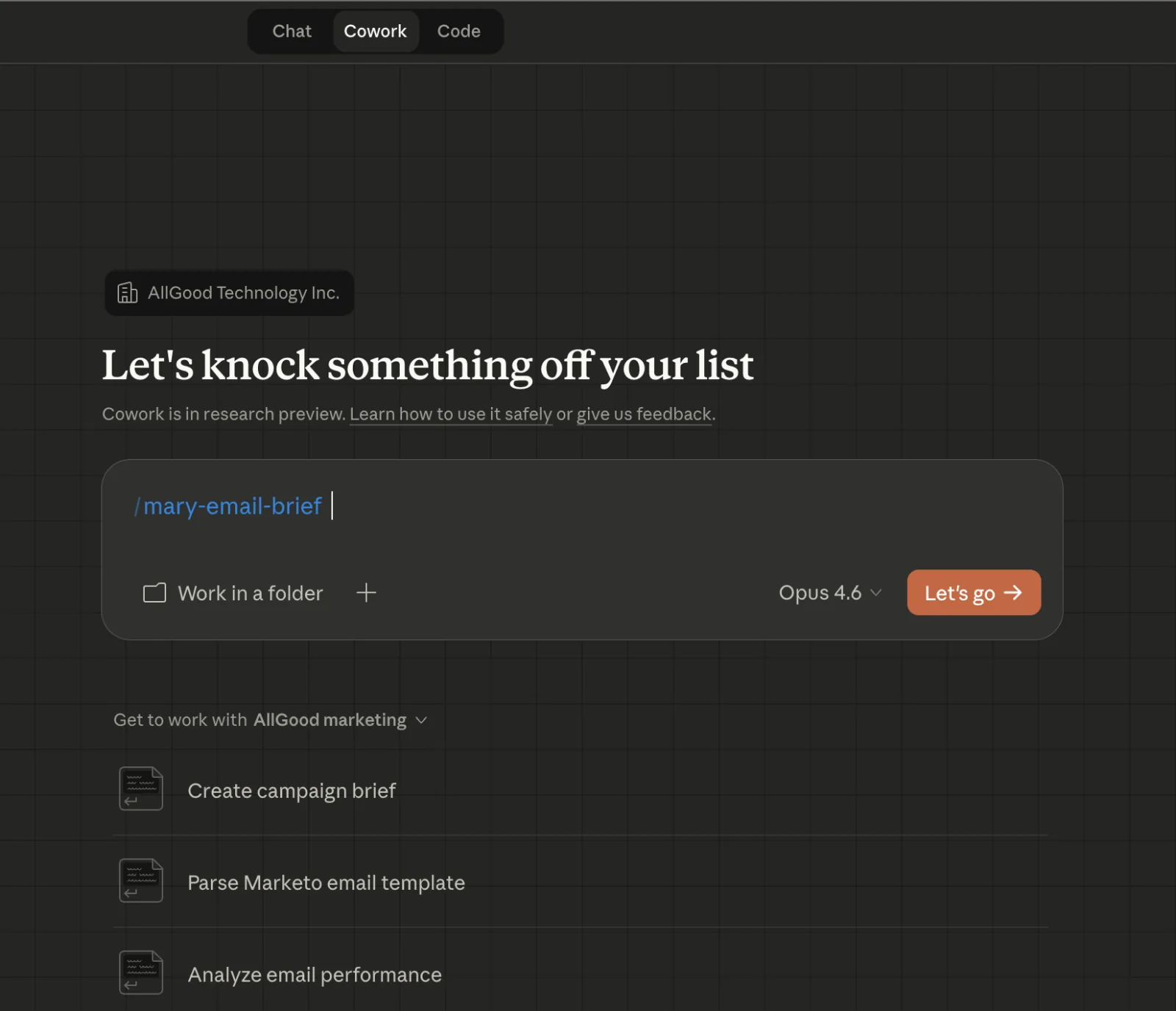
- In Claude Cowork, select "Build campaign briefing doc"
- Enter your Marketo campaign name
- Hit "Let's go" and let allGood run the build
- Get your fully formatted briefing doc: ready for stakeholder handoff
You can customize the output and prompt Claude directly at any step. Need just Email 1 for now? Ask for it. Want a quick brief without the instructions section? You'll get that too.
How It Actually Works
Here's what happens when you ask for a Marketo briefing document:
Step 0: Find the Campaign
Type the campaign name. Claude searches your Marketo instance directly and locates the right program. One match, it confirms and moves on. Multiple matches, it shows you the list and asks you to pick. Nothing comes back, it broadens the search automatically.
No logging into Marketo. No copying program IDs. Just type the name.
Step 1: Pull Everything
Once it has the program, Claude pulls every token (name, type, and current value) along with every email asset in the program. From there it determines the campaign structure on its own: single email, multi-touch series, or event plus landing page.
It also maps tokens to their deliverables automatically. Token names that include an em2- prefix belong to Email 2. em3- goes to Email 3. Everything else belongs to Email 1 or is shared. Claude reads the naming convention and figures out the structure without you having to explain it.
Before building anything, it surfaces a quick summary and asks you to confirm.
Step 2: Build the Doc
The skill reads a formatting reference file, briefing-format.md: that encodes your brand standards: fonts, colors, table widths, margin sizes, how tokens should be labeled. It builds your Marketo campaign brief template to your spec, not a generic layout.
The output is a structured Word document with three things that make it genuinely useful for stakeholders:
The 3-line label structure. Every token row shows three lines in the label column: a plain-English field name in bold at the top (so your copywriter knows what to write), the Marketo token name below it in gray (so your builder knows exactly where it maps), and a short helper note below that in smaller gray text (so neither of them has to ask you what it means). All generated automatically. All consistently formatted.
Pre-populated values. If a token already has a value set in Marketo, it comes through pre-filled in the doc. Your team sees what's already locked in and only needs to fill in what's missing.
Visual marker numbers. Each row in the content table gets a pink numbered marker. Subject Line is 1, Preheader is 2, Banner Image and Banner URL are both 3 (grouped because they go together), Headline is 4, and so on. Related fields share the same number and the same row background color. When you drop a screenshot of the email design into the doc, your stakeholders can match field 3 in the table to element 3 in the design without any guesswork.
The doc structure adapts to your campaign type as well. A single email gets one content section. A three-email nurture gets three, each organized by its token prefix. An event program with a landing page gets separate sections for shared event details, email content, and landing page content.
Step 3: Validate
Before anything gets handed off, the skill runs through a 20-point validation checklist: confirming that every token from the program is present, pre-populated values match the source data, formatting is applied correctly, and nothing is mislabeled or missing. If anything fails, it fixes it and reruns the checklist.
Then you do a quick review, run a test build with allGood to confirm every token populates correctly, and hand it off. That's the whole process.
Don't Have the Marketo Connection Set Up Yet?
The skill works without it.
If you're not yet connected to Marketo through Claude, take a screenshot of the My Tokens tab in your Marketo program and drop it in. The skill reads the screenshot, extracts every token name and value it can see, infers the campaign structure from the naming convention, and builds the exact same briefing doc from there.
You lose the automatic pull, but you keep everything else. Same formatting, same label structure, same validation, just with a screenshot instead of a live connection.
One More Skill Worth Knowing About
We're also releasing a companion skill alongside this one, also free.
If you've ever received a Google Doc or Word file full of campaign copy that isn't formatted for your briefing template, you know what comes next. Manual translation. Field by field, line by line.
The Content-to-Brief Formatter takes that unstructured document and automatically maps the content into your existing briefing doc format, so allGood gets content in a format it can use, and you skip the reformatting entirely.
Two skills. Both free. Both built to give MOPs teams their time back.
Why We Built This
Honest answer: Marketo briefing documents are one of those tasks that should have been automated years ago. The data is already in Marketo. The format doesn't change. The translation from token name to human label is purely mechanical.
But because it's tedious rather than hard, it just keeps getting done manually. Every new program. Every single time.
We think the best use of a marketing operations professional's brain is strategy, not reformatting tables. So we built the tool to handle the table reformatting, and made it free, because the whole program runs better when your team isn't buried in busywork.
Stop Rebuilding Docs from Scratch
Your token data is already in Marketo. Your brand standards are already documented. The only thing missing was a Claude Marketo integration to connect them automatically.