

Ready to get started with Claude skills? There are two ways to install them. If you're using Claude Cowork, install the plugin. If you're using Claude on its own, upload individual skill files. We cover both options here.
Install the allGood Marketing Plugin into Claude Cowork
Getting set up takes about two minutes:
- Open Claude Desktop
- Go to Customize > Browse Plugins
- Click the "+" on the left side of your screen and select "Add marketplace from GitHub"
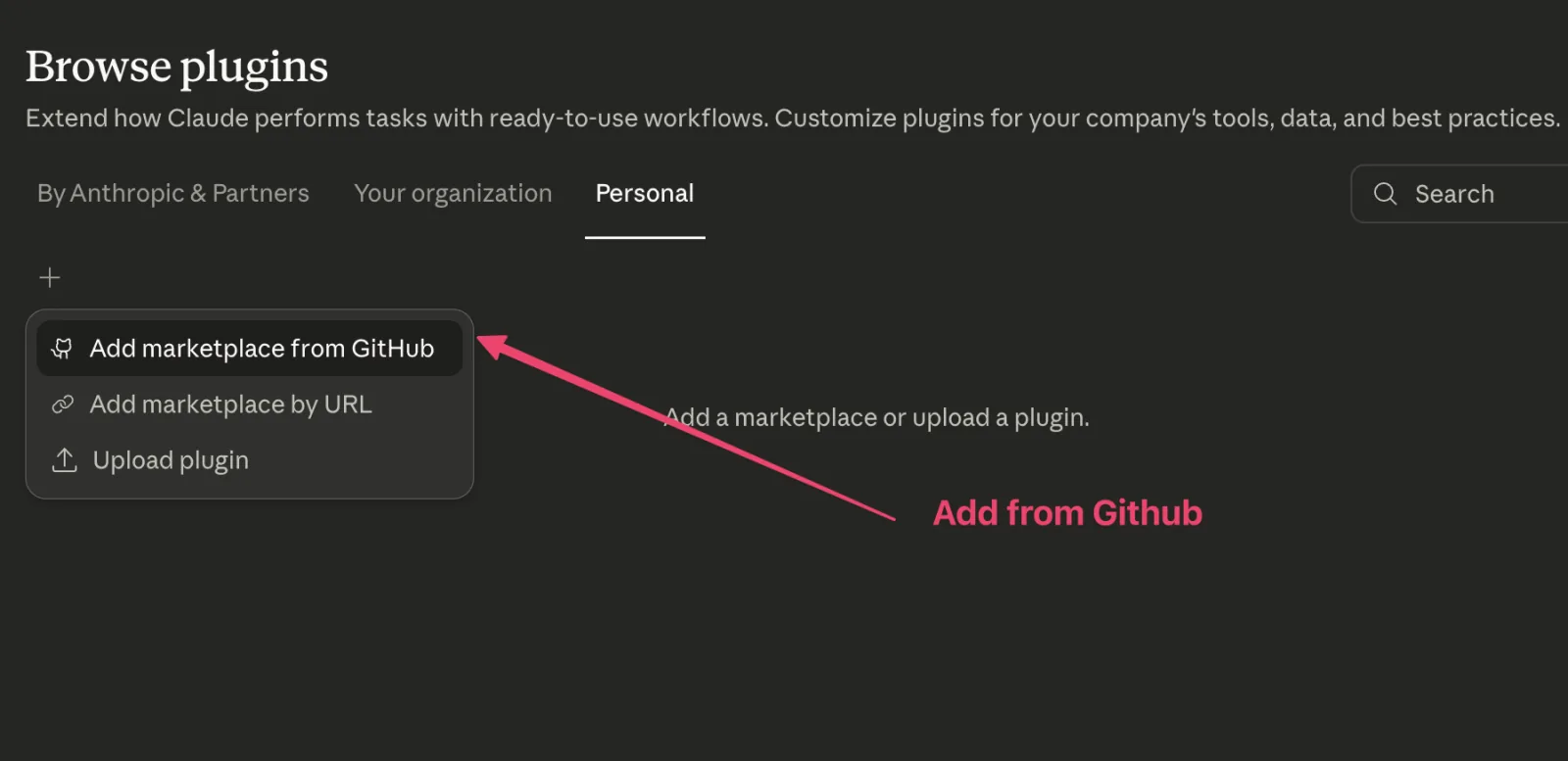
Add allGood marketplace from GitHub
- Enter the URL:
AllGoodHQ/allgood-marketplace - Install the allGood plugin
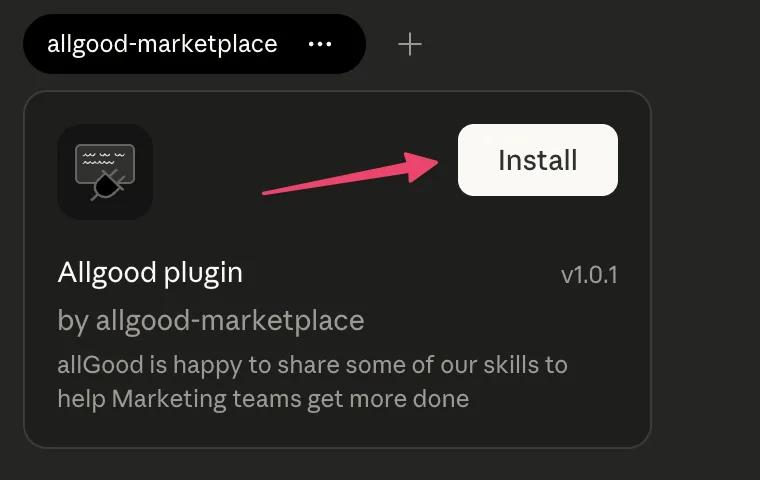
Install the plugin.
That's it. You're ready.
Alternative: Install the Skill File Directly
If you're using Claude Chat, download the skills from our page first.
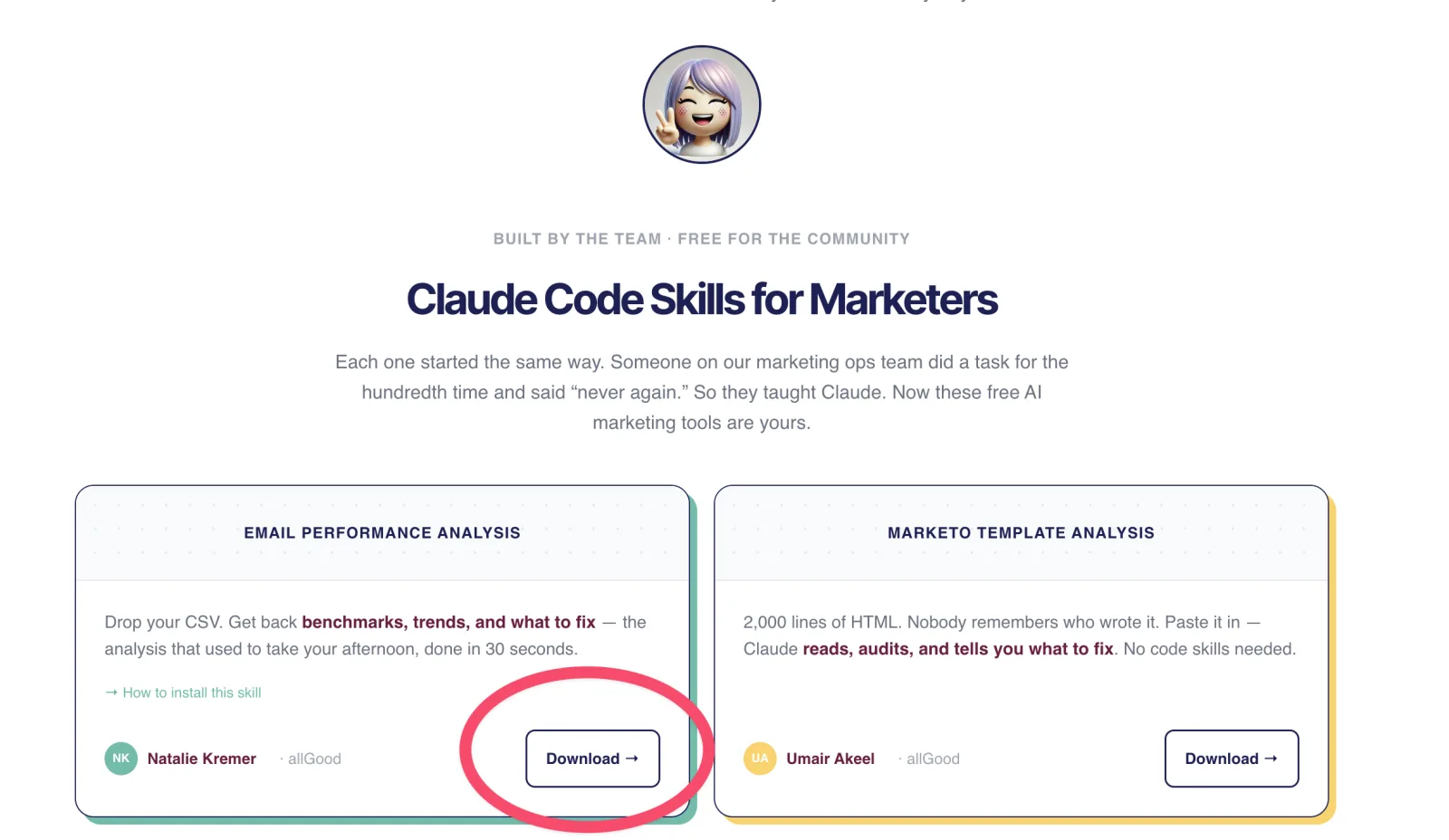
Download the skill you want to use
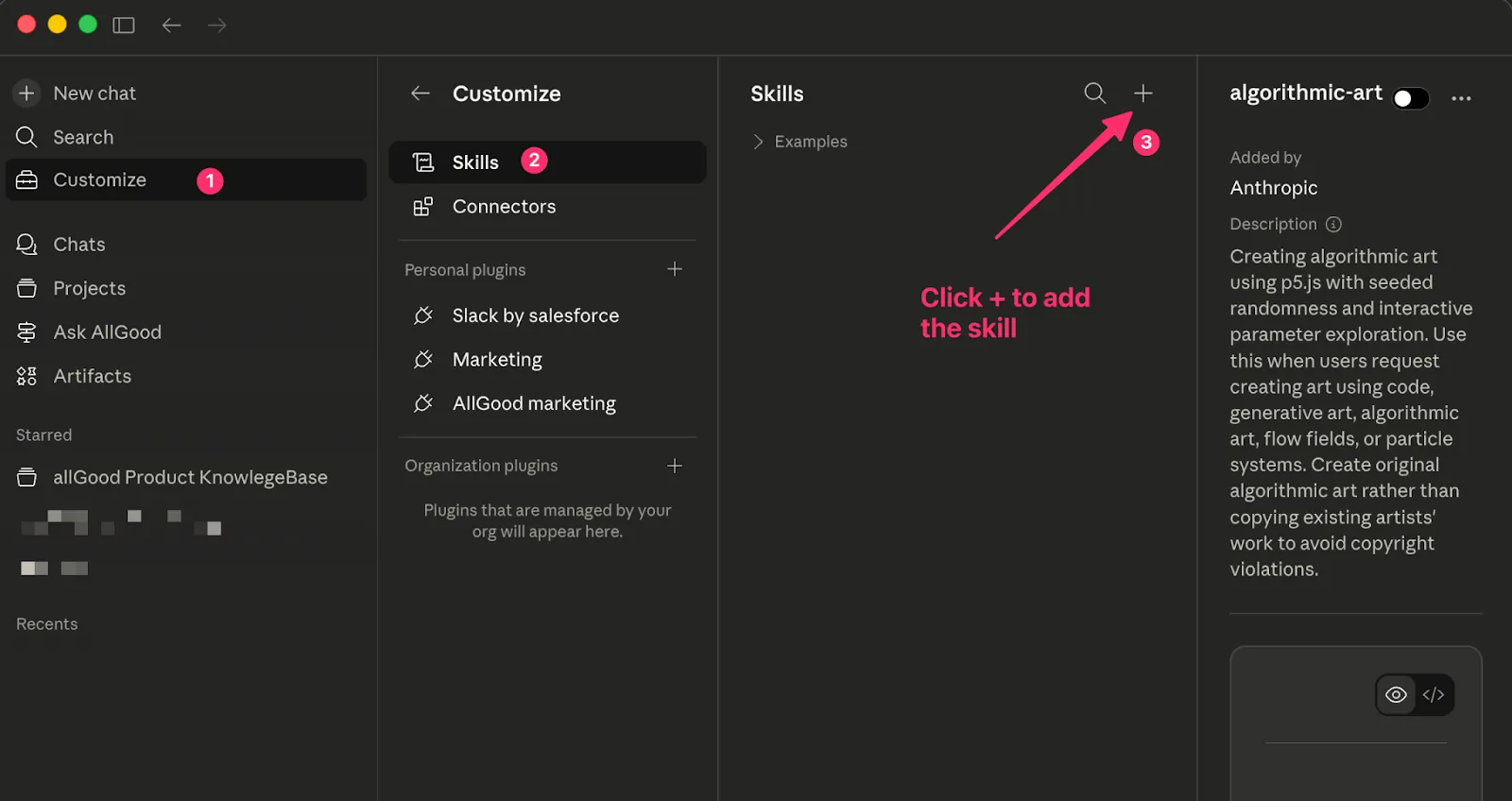
Customize Claude to install the skill
- In Claude Desktop, find Customize in the left side panel and click it
- Select Skills from the menu that appears
- At the top of the Skills panel, click the + symbol, then select Upload Skill from the options that appear
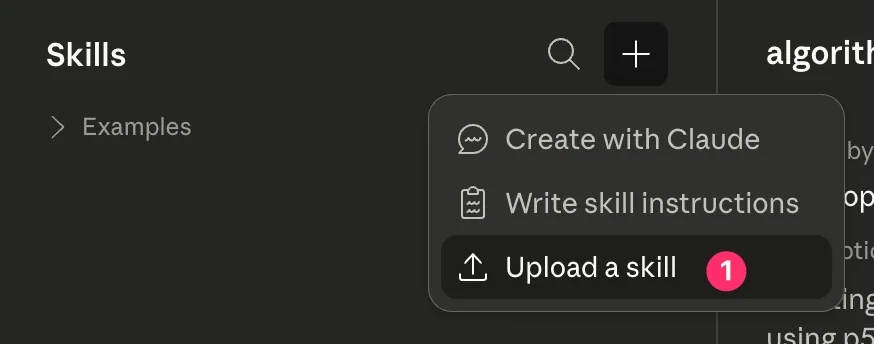
Upload the skill
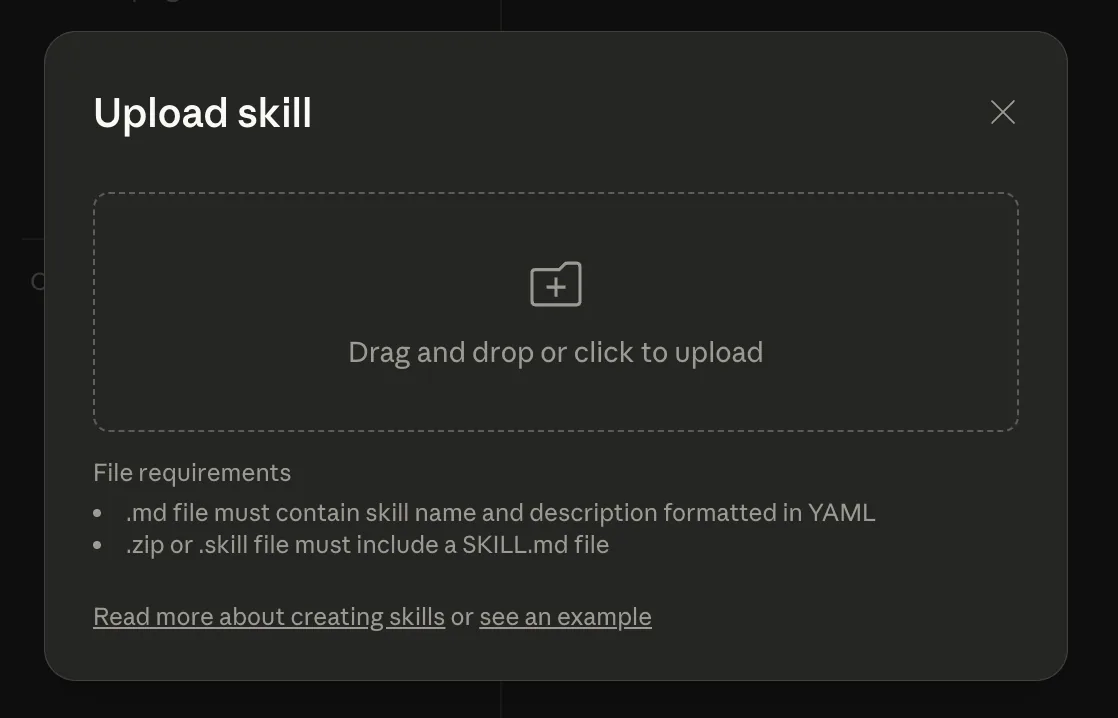
Upload the file you downloaded.
- Find the skill file you downloaded from allgoodhq.com and select it
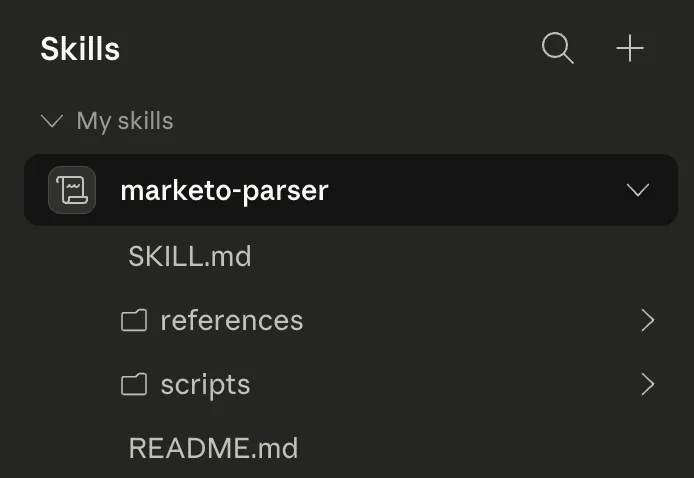
Skill should be ready to use.
- When you open Claude Cowork, you'll see "Build campaign briefing doc" ready to go. You're done!